Hidden rows in Excel can be useful at times, but they can also make it hard to work with your data. This guide shows you exactly how to unhide all rows in your worksheet at once.
How to Unhide All Rows
Step 1: Select all rows in your worksheet. This can be done by clicking the Select All button (the triangle in the top-left corner where row and column headers meet) or by using the keyboard shortcut ctrl + A.
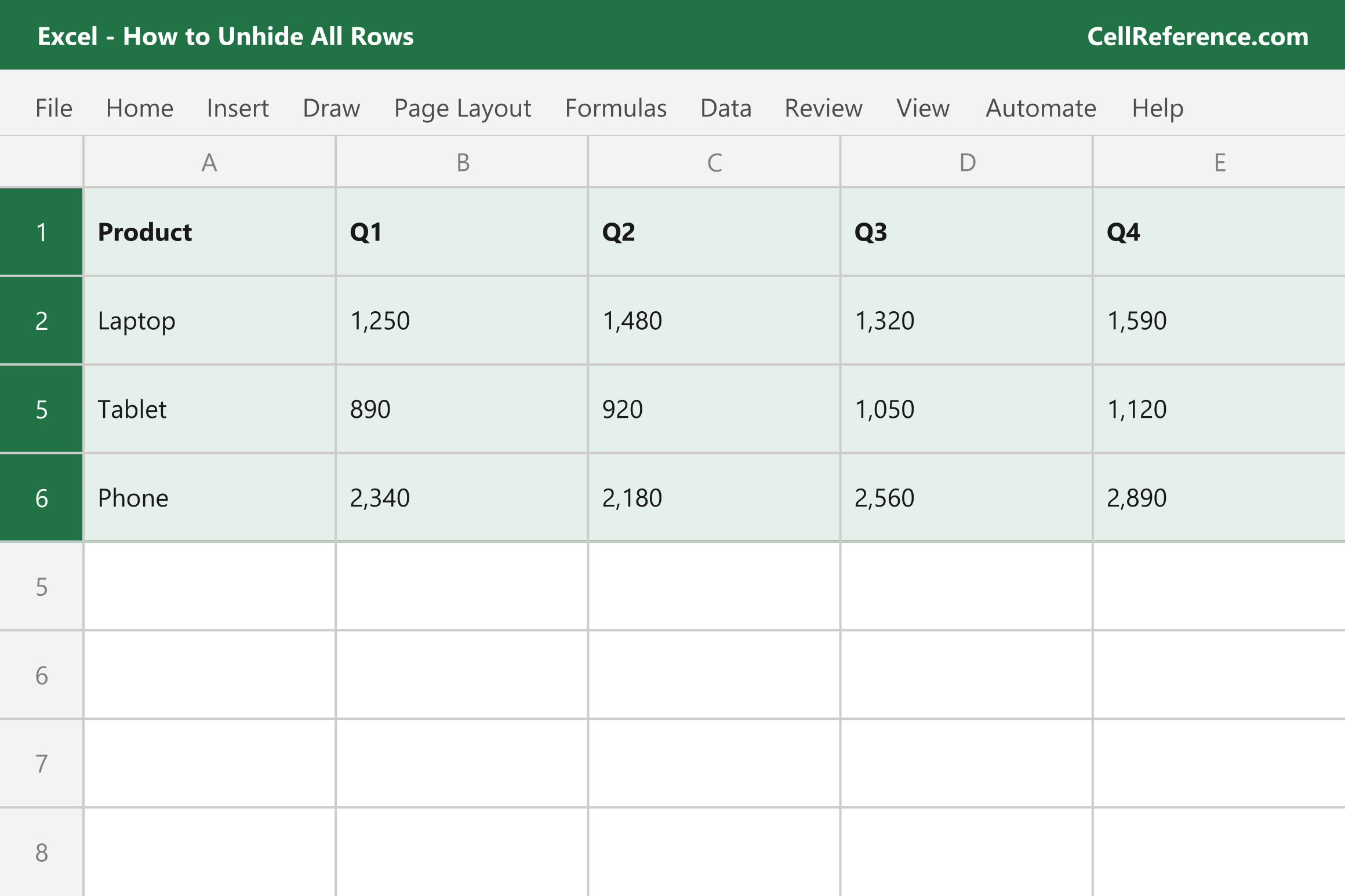
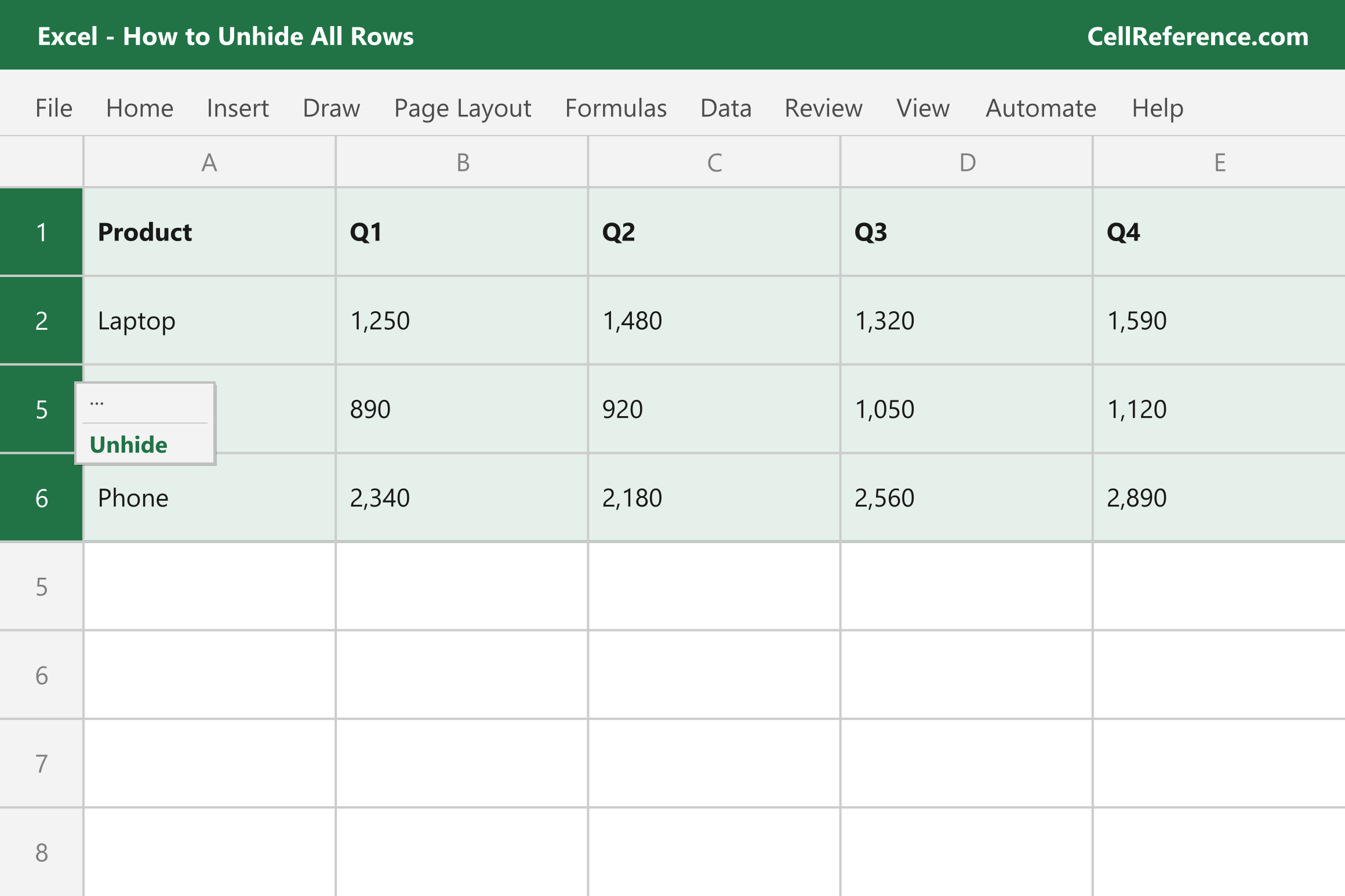
Step 2: Right-click on any visible row number and select Unhide.
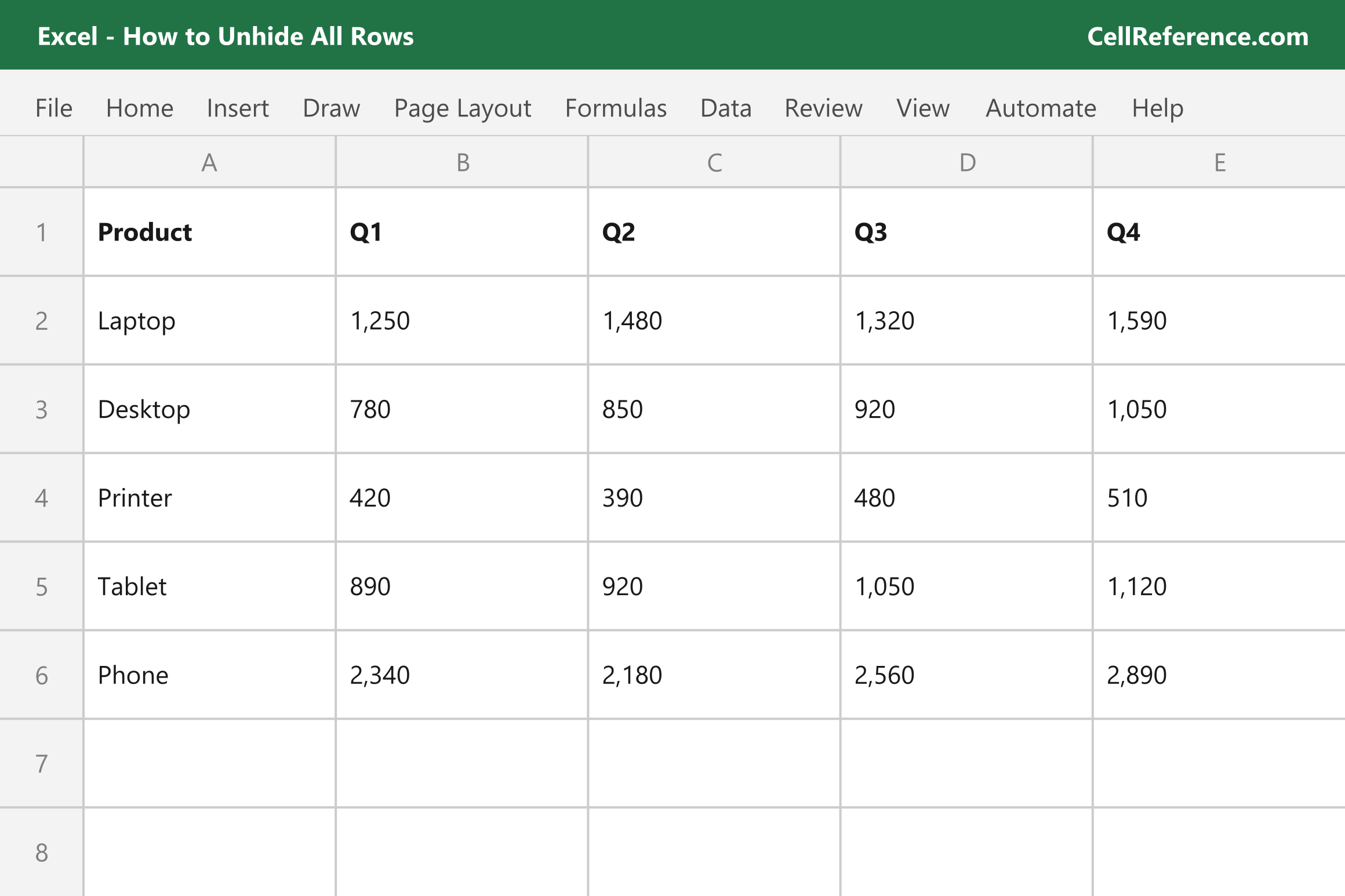
Result: All hidden rows in your worksheet are now visible.
Keyboard Shortcuts Related to Unhiding Rows
| Action | Shortcut (Windows) |
|---|---|
| Select all | Ctrl + A |
| Unhide selected rows | Ctrl + Shift + 9 |
Troubleshooting
If unhiding doesn't work it might be related to one of these problems. Try these solutions:
Protected worksheet: Go to Review > Unprotect Sheet first, then try unhiding again.
Row height set to zero: Select all rows, then right-click on a row number and choose Row Height. Enter a value like 15 and click OK.