Grouping rows in Excel lets you collapse and expand sections of your spreadsheet, making it easier to view and present your data. This visual guide shows you exactly how to group rows.
Group Rows
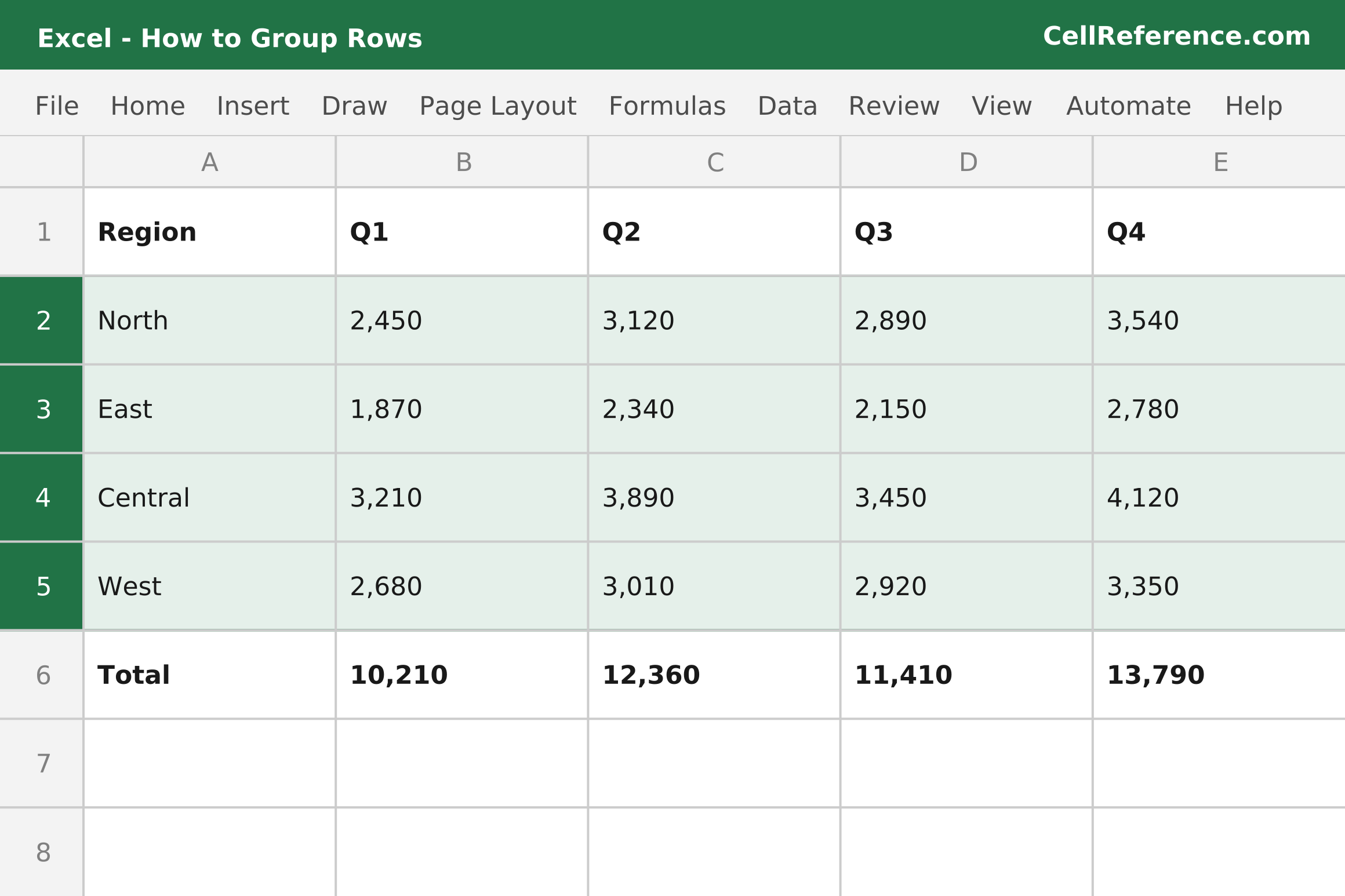
Step 1: Select the rows you want to group. This can be done by clicking and dragging on the row numbers.
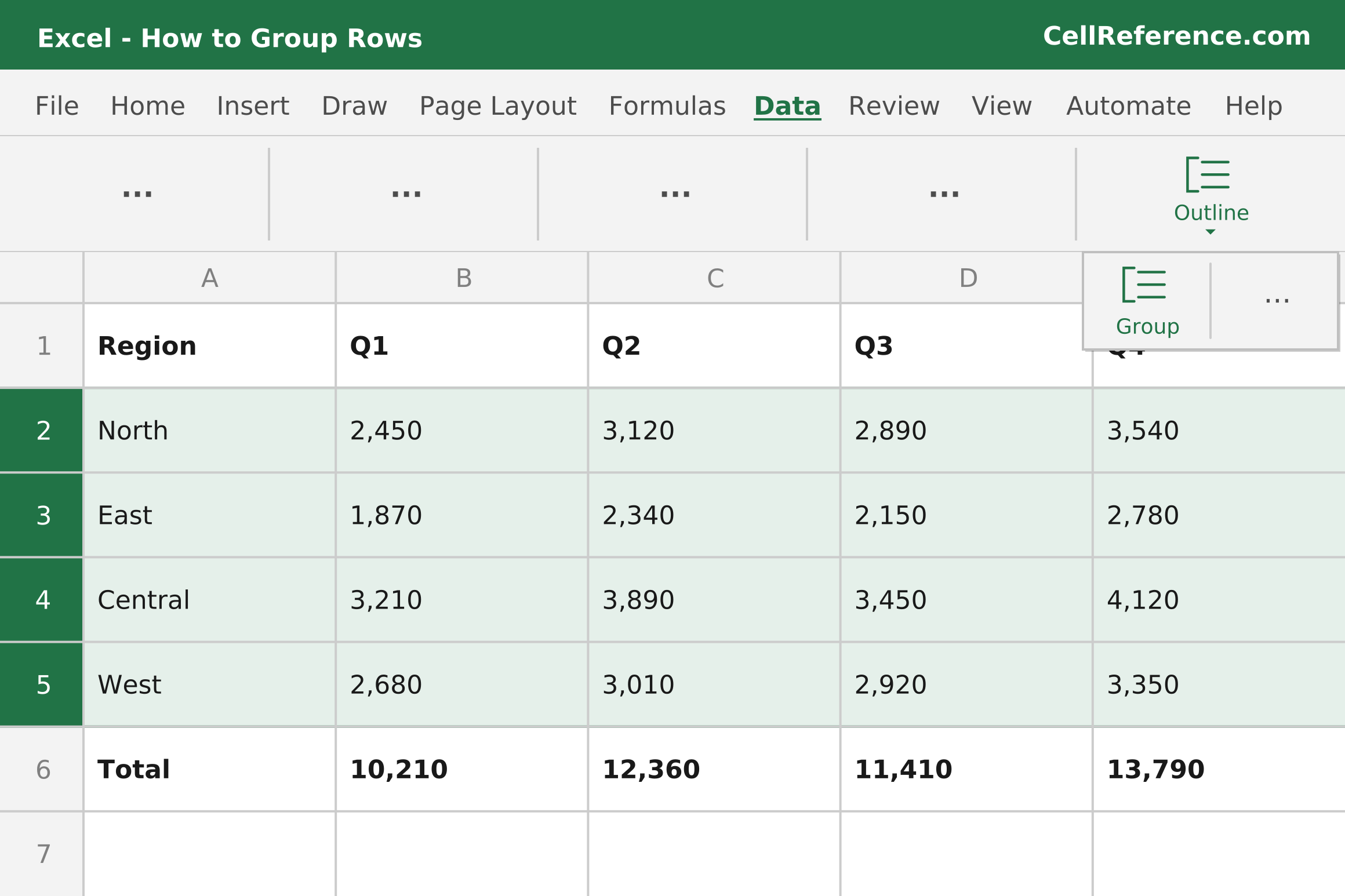
Step 2: Open the Data tab, click Outline, and then click Group.
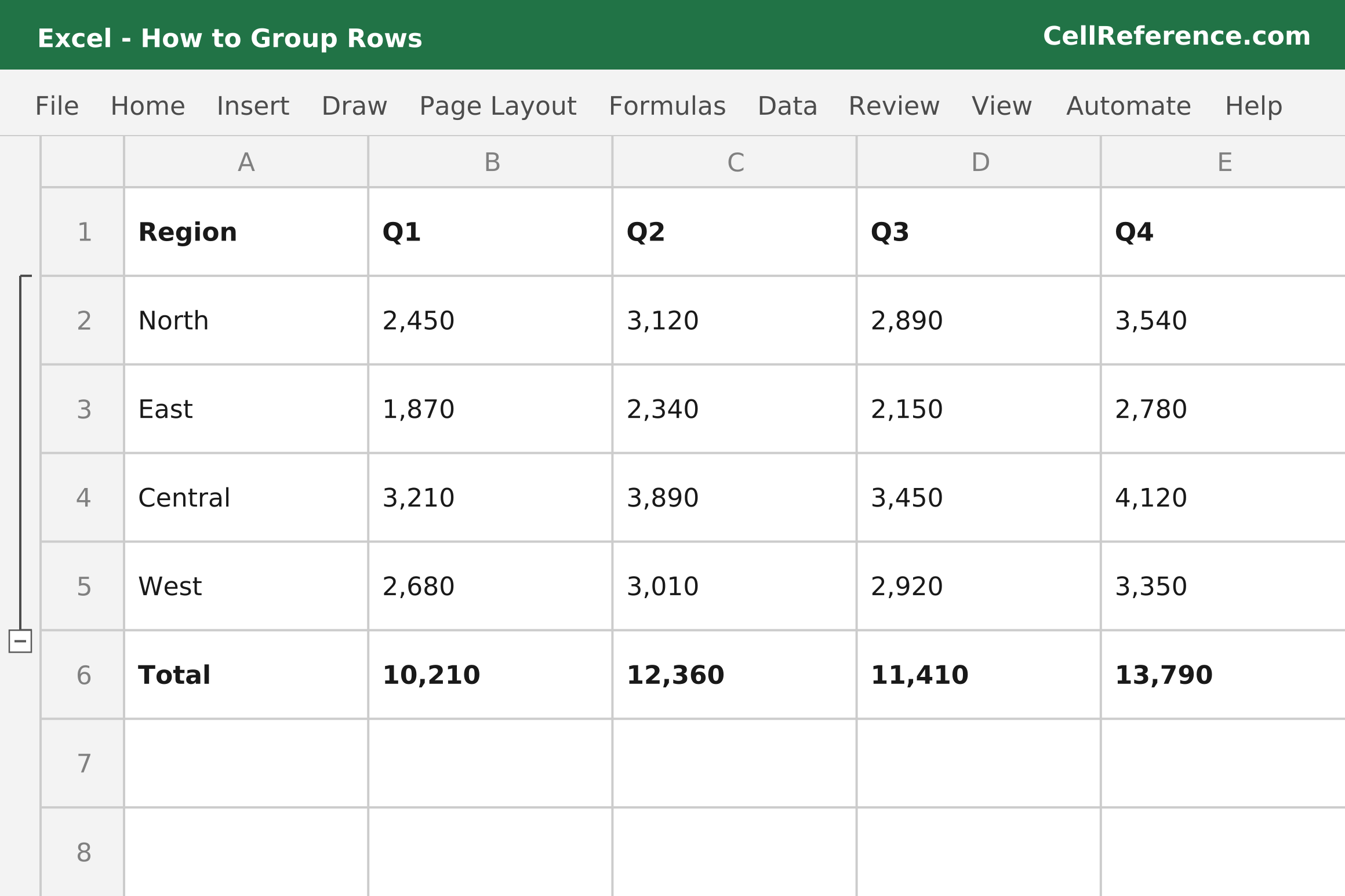
Result: Outline symbols appear to the left of your rows. A minus sign (−) to collapse and a plus sign (+) to expand.
Collapse and Expand Rows
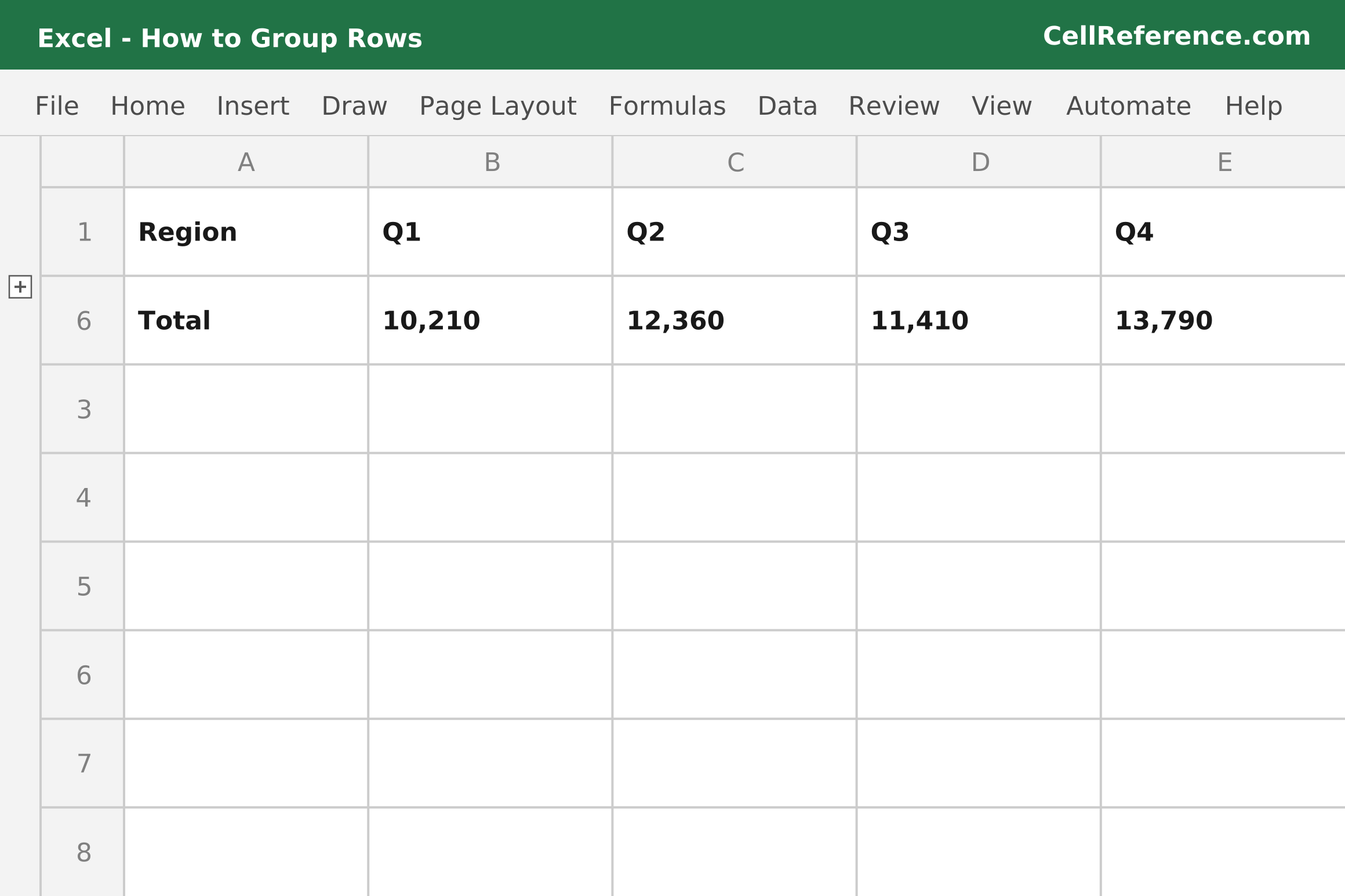
Click the minus sign (−) to collapse a set of grouped rows. Click the plus sign (+) to expand it.
Ungroup Rows
Step 1: Select the grouped rows.
Step 2: Open the Data tab, click Outline, and then click Ungroup.
Tip: To remove all groups at once, click the arrow under Ungroup and select Clear Outline.
Keyboard Shortcuts Related to Grouping Rows
| Action | Shortcut (Windows) |
|---|---|
| Group selected rows | Alt + Shift + → |
| Ungroup selected rows | Alt + Shift + ← |
| Collapse group | Alt + A + H |
| Expand group | Alt + A + J |